User GuideStep 2/9
Client View
Client view URL
The client view URL is a public link to your booking page, where clients can make bookings.
Title
The client view title. Shown when filled in.
Description
The client view description. Shown when filled in.
Client view image
An image of your choice to show in your client view. It can be your brand logo or, for example, a photo of your work.
Background image
The background image used in the client view.
Background color
The color used as the background when no background image is set.
Primary color
The main color used for user interface elements.
Secondary color
The color used for the selected time slot button.
Default selected language
The language that is selected automatically in the client view.
Language enabled
Whether this language is offered as an option in the client view. When you add a language, also add the service translations in the service settings.
Employee selection enabled
Whether clients can choose a specific employee when making a booking.
Employee label
How the employee name is displayed in the client view.
All employees selected by default
Determines whether all employees are selected by default in the employee selection step of the client view.
Website link
A link to your website, if you want to display it on your booking page.
Instagram link
A link to your Instagram page, if you want to display it on your booking page.
Facebook link
A link to your Facebook page, if you want to display it on your booking page.
Booking info
Additional booking information displayed in the confirmation step.
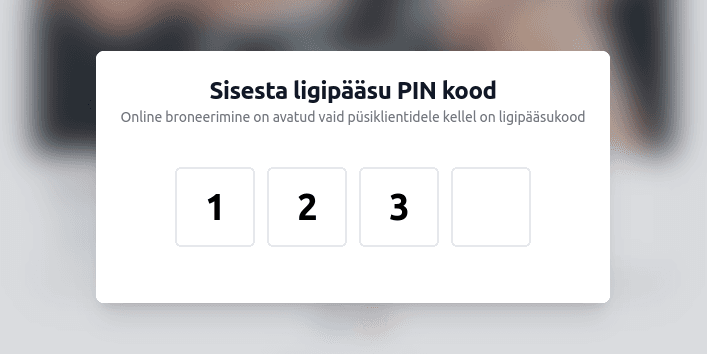
Access PIN code
The access PIN code is a four-digit code that restricts access to your booking page. If your client list is full or you do not want new clients through the booking page, set a PIN code and share it with your existing clients. When a code is set, only clients who know it can book.